
280 lines
10 KiB
Markdown
280 lines
10 KiB
Markdown
# Application Load Balancer (ALB)
|
||
|
||
## What is an Application Load Balancer?
|
||
|
||
An **Application Load Balancer (ALB)** operates at **OSI Layer 7** (the application layer), meaning it understands HTTP and HTTPS traffic and can make routing decisions based on the content of each request. When a client sends a request to the ALB's DNS endpoint, the ALB inspects the request and forwards it to one of the healthy registered targets in its **target group**, distributing load across multiple backend instances. This means you expose a single DNS name to the internet, and the ALB handles spreading requests across your backend — no single instance bears all the traffic. ALB also supports advanced routing rules (path-based, host-based), sticky sessions, and continuous health checks that automatically remove failed instances from rotation.
|
||
|
||
---
|
||
|
||
## Lab Overview
|
||
|
||
| Resource | Name |
|
||
|---|---|
|
||
| Load Balancer | `demo-ALB` |
|
||
| Target Group | `demo-TG-ALB` |
|
||
| Security Group (ALB) | `demo-SG-ALB` |
|
||
| EC2 Instance 1 | `Demo-EC2-ALB-1` |
|
||
| EC2 Instance 2 | `Demo-EC2-ALB-2` |
|
||
| Region | `ap-south-1` (Mumbai) |
|
||
| Protocol | HTTP port `80` |
|
||
| Target type | EC2 instances |
|
||
|
||
---
|
||
|
||
## Video Demo
|
||
|
||
[](https://youtu.be/JrgvgSGxSdw)
|
||
|
||
---
|
||
|
||
## Step-by-Step Walkthrough
|
||
|
||
### Step 1 — Open the AWS Console
|
||
|
||
Log in to AWS and navigate to the Console Home. From the recently visited services or the search bar, click **EC2** to start launching instances.
|
||
|
||

|
||
|
||
---
|
||
|
||
### Step 2 — Launch EC2 Instances
|
||
|
||
#### 2a — Set instance name and choose OS
|
||
|
||
In the EC2 dashboard click **Launch instances**. Enter a name for the instance and select **Amazon Linux 2023** as the AMI.
|
||
|
||

|
||
|
||
#### 2b — Configure security group and allow HTTP
|
||
|
||
Under **Network settings**, select an existing security group or create a new one. Make sure **Allow HTTP traffic from the internet** is checked so the web server is reachable on port 80.
|
||
|
||

|
||
|
||
#### 2c — Add the user data script
|
||
|
||
Expand **Advanced details** and scroll down to the **User data** field. Paste the following script:
|
||
|
||
```bash
|
||
#!/bin/bash
|
||
# Use this for your user data (script from top to bottom)
|
||
# install httpd (Linux 2 version)
|
||
yum update -y
|
||
yum install -y httpd
|
||
systemctl start httpd
|
||
systemctl enable httpd
|
||
echo "<h1>Hello World from $(hostname -f)</h1>" > /var/www/html/index.html
|
||
```
|
||
|
||
**What this script does:**
|
||
|
||
| Command | Purpose |
|
||
|---|---|
|
||
| `yum update -y` | Updates all installed packages to the latest versions |
|
||
| `yum install -y httpd` | Installs Apache HTTP Server |
|
||
| `systemctl start httpd` | Starts the web server immediately after boot |
|
||
| `systemctl enable httpd` | Ensures the web server starts automatically on every reboot |
|
||
| `echo ... > /var/www/html/index.html` | Creates a simple HTML page displaying the instance's private hostname — this is how you can tell which backend instance responded when testing the ALB |
|
||
|
||
Set **Number of instances** to `2`, then click **Launch instance**.
|
||
|
||

|
||
|
||
#### 2d — Rename both instances
|
||
|
||
Once both instances are running, rename them to `Demo-EC2-ALB-1` and `Demo-EC2-ALB-2` by clicking the pencil icon next to each name.
|
||
|
||

|
||
|
||
---
|
||
|
||
### Step 3 — Navigate to Load Balancers
|
||
|
||
In the EC2 left sidebar, scroll down to the **Load Balancing** section and click **Load Balancers**. Then click **Create load balancer**.
|
||
|
||

|
||
|
||

|
||
|
||
#### 3a — Choose Application Load Balancer
|
||
|
||
On the **Compare and select load balancer type** page, click **Create** under **Application Load Balancer**.
|
||
|
||

|
||
|
||
---
|
||
|
||
### Step 4 — Configure the ALB
|
||
|
||
#### 4a — Basic configuration
|
||
|
||
Enter the following settings:
|
||
- **Load balancer name:** `demo-ALB`
|
||
- **Scheme:** Internet-facing
|
||
- **IP address type:** IPv4
|
||
- **VPC:** Select your default VPC (or your custom VPC)
|
||
|
||

|
||
|
||
#### 4b — Select all availability zones
|
||
|
||
Under **Mappings**, select all available availability zones. This ensures the ALB can route to instances in any AZ and improves fault tolerance.
|
||
|
||

|
||
|
||
---
|
||
|
||
### Step 5 — Create and Assign a Security Group
|
||
|
||
#### 5a — Create a new security group
|
||
|
||
Click **Create new security group** next to the security group selector. This opens the Security Groups console in a new tab.
|
||
|
||

|
||
|
||
#### 5b — Fill in security group details
|
||
|
||
Enter:
|
||
- **Security group name:** `demo-SG-ALB`
|
||
- **Description:** Security group for Application Load Balancer
|
||
- **VPC:** Select the same VPC chosen for the ALB
|
||
|
||

|
||
|
||

|
||
|
||
#### 5c — Add inbound rule
|
||
|
||
Under **Inbound rules**, click **Add rule**. Set:
|
||
- **Type:** HTTP
|
||
- **Source:** `0.0.0.0/0` (allows all internet traffic on port 80)
|
||
|
||
Then click **Create security group**.
|
||
|
||

|
||
|
||

|
||
|
||
#### 5d — Select the new security group in the ALB config
|
||
|
||
Go back to the ALB creation tab, refresh the security group list, and select `demo-SG-ALB`. Scroll down to continue.
|
||
|
||

|
||
|
||
---
|
||
|
||
### Step 6 — Configure Listener and Target Group
|
||
|
||
#### 6a — Set default listener action
|
||
|
||
Under **Listeners and routing**, the default listener is HTTP port 80. Set the **Default action** to **Forward to** a target group. Click **Create target group** to open the target group wizard.
|
||
|
||

|
||
|
||
#### 6b — Configure target group basics
|
||
|
||
In the target group wizard, set:
|
||
- **Target type:** Instances
|
||
- **Target group name:** `demo-TG-ALB`
|
||
- **Protocol:** HTTP
|
||
- **Port:** 80
|
||
- **IP address type:** IPv4
|
||
|
||

|
||
|
||

|
||
|
||
Scroll down and click **Next**.
|
||
|
||

|
||
|
||
#### 6c — Register targets
|
||
|
||
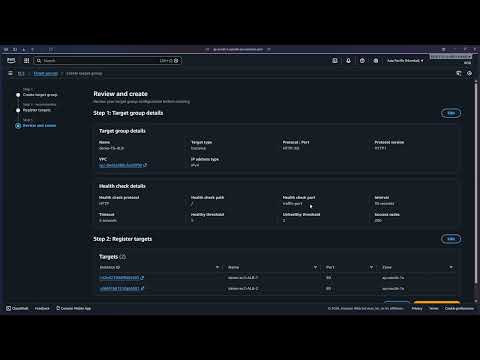
Select both EC2 instances (`Demo-EC2-ALB-1` and `Demo-EC2-ALB-2`) from the available instances list, then click **Include as pending below**.
|
||
|
||

|
||
|
||
Click **Next** to proceed to the review step.
|
||
|
||

|
||
|
||
Click **Create target group** to finalize.
|
||
|
||

|
||
|
||

|
||
|
||

|
||
|
||
#### 6d — Select the target group in the ALB config
|
||
|
||
Return to the ALB creation tab and select `demo-TG-ALB` as the target group for the listener's default action.
|
||
|
||

|
||
|
||
Scroll down and click **Create load balancer**.
|
||
|
||

|
||
|
||
---
|
||
|
||
### Step 7 — ALB Created Successfully
|
||
|
||
The ALB is now created. You will see a success banner and the ALB will appear in the load balancers list with state **Active** once it finishes provisioning.
|
||
|
||

|
||
|
||

|
||
|
||
---
|
||
|
||
### Step 8 — Test the ALB
|
||
|
||
#### 8a — Copy the DNS name
|
||
|
||
In the **Load Balancers** list, select `demo-ALB` and copy the **DNS name** from the details panel at the bottom.
|
||
|
||

|
||
|
||

|
||
|
||
#### 8b — Open in a browser
|
||
|
||
Paste the DNS name into your browser's address bar and press Enter. You should see a page displaying one of the instance hostnames.
|
||
|
||

|
||
|
||
#### 8c — Refresh to confirm load distribution
|
||
|
||
Refresh the page. The ALB routes the second request to the other backend instance, and a different hostname appears — confirming the load balancer is distributing traffic across both EC2 instances.
|
||
|
||

|
||
|
||
> **ALB in action:** The same DNS endpoint served two different responses from two different backend instances. This is exactly what ALB is designed to do — distribute incoming HTTP requests across all healthy registered targets, preventing any single instance from becoming a bottleneck.
|
||
|
||
---
|
||
|
||
### Step 9 — Cleanup
|
||
|
||
#### 9a — Delete the ALB
|
||
|
||
In the **Load Balancers** console, select `demo-ALB`, click **Actions > Delete load balancer**, type `confirm` in the confirmation field, and click **Delete**.
|
||
|
||

|
||
|
||

|
||
|
||
#### 9b — Delete the security group
|
||
|
||
Navigate to **EC2 > Security Groups**, select `demo-SG-ALB`, and click **Actions > Delete security groups**.
|
||
|
||

|
||
|
||
#### 9c — Terminate EC2 instances
|
||
|
||
Navigate to **EC2 > Instances**, select both `Demo-EC2-ALB-1` and `Demo-EC2-ALB-2`, click **Instance state > Terminate instance**, and confirm.
|
||
|
||

|
||
|
||
All resources used in this lab have been deleted.
|